Templates
A template is the recipe Lium uses to start your pod's container. It bundles a Docker image, an image tag, environment variables, port exposures, a startup command, and the volume mount path — everything that decides "what software is on this GPU when it boots."
Pick a good template and your pod is ready to run training/inference 30 seconds after Deploy. Pick a custom one and your environment is reproducible across teammates and runs.
Why templates matter
| Benefit | What it means in practice |
|---|---|
| Faster cold boots | The picker shows a Fast deploy badge on the canonical image for the chosen GPU class, and the right-hand summary shows a cached badge next to Est. Deploy Time when the exact image is already on the chosen node — your container starts in seconds. |
| Reproducible environments | Pin a CUDA / PyTorch / driver combo once, reuse it on every pod for the project. |
| Shareable | Make a template public and your team (or the whole community) can deploy with one click. |
| Agent-friendly | The CLI, SDK, and MCP all accept a template ID — your AI agent can spin up identical pods on demand. |
Browsing & picking a template
Two places to choose:
- Templates page — Click Templates in the sidebar. The page splits into My templates (yours) and Browse templates (everyone's). Search by name, filter by category.
- Inline on Create Pod — When you click RENT NOW, the Template card on the Create Pod page is pre-filled with the most-used template for that GPU. Click the × to swap.
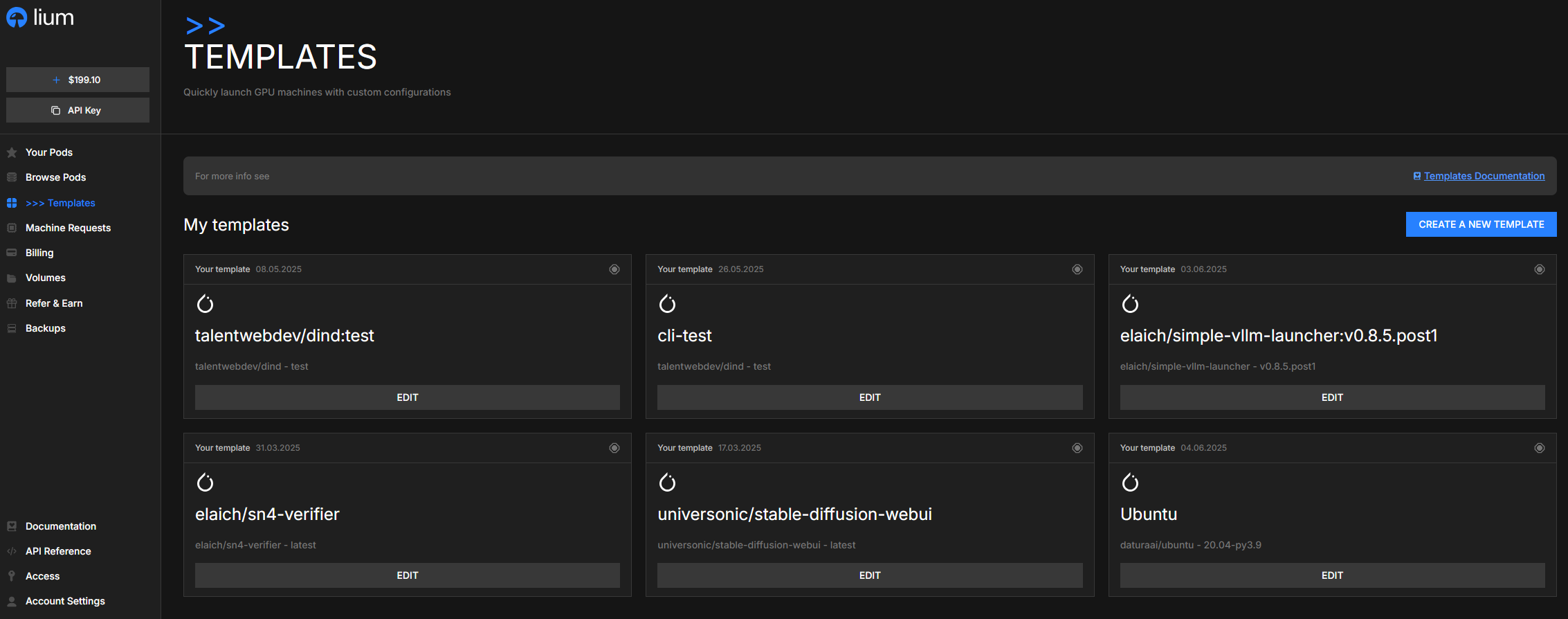
Each card shows:
- Image name (e.g.
daturaai/pytorch) and tag. - The template's Category (PyTorch, TensorFlow, Custom, …).
- Labels (only render in the Create Pod template picker — the standalone
/templatespage doesn't pass the host context the badges need):- Previously used — green chip on a template you've deployed before.
- Fast deploy — blue chip on the template whose
docker_image:tagmatches the canonical default image for the chosen host's GPU + driver. Picking it means the host is most likely to have the image cached and you skip the long pull.
- An EDIT button on templates you own.
Fast deploy is per-GPU-class: "this is the canonical image for this card." cached (the small badge that shows up in the right-hand summary next to Est. Deploy Time) is per-node: "this exact image is already on this specific machine right now." Both pointing at the template and the host means a near-instant deploy. Pulling a non-cached image adds 1–10 minutes.
Official single-node templates
| Template | What is inside | Pick it when |
|---|---|---|
| Pytorch (Cuda + DinD) | daturaai/pytorch: PyTorch, Python 3.12, a CUDA 13.0 or 12.8 build, Docker-in-Docker, sshd | Training and inference; the default for every GPU |
| CUDA devel (nvcc, full toolkit) | nvidia/cuda:13.0.3-devel-ubuntu22.04: nvcc and the full CUDA 13.0 toolkit, no PyTorch. Lium installs sshd at start and keeps the container up with sleep infinity. No encrypted-volume option: treat /root as plain disk | Compiling CUDA code, ncu profiling, anything that needs the toolkit without an apt-get install |
Multi-node rentals use their own template, Multi-node cluster: see Clusters.
A stock nvidia/cuda image on its own exits right after start. The official CUDA devel template sets the start command for you; if you build a custom template on such an image, set Container Start Command to sleep infinity yourself (see below).
Creating a custom template
When the official templates don't fit (custom CUDA stack, your team's image, vLLM/SGLang launcher, …) make your own.
Steps in the UI
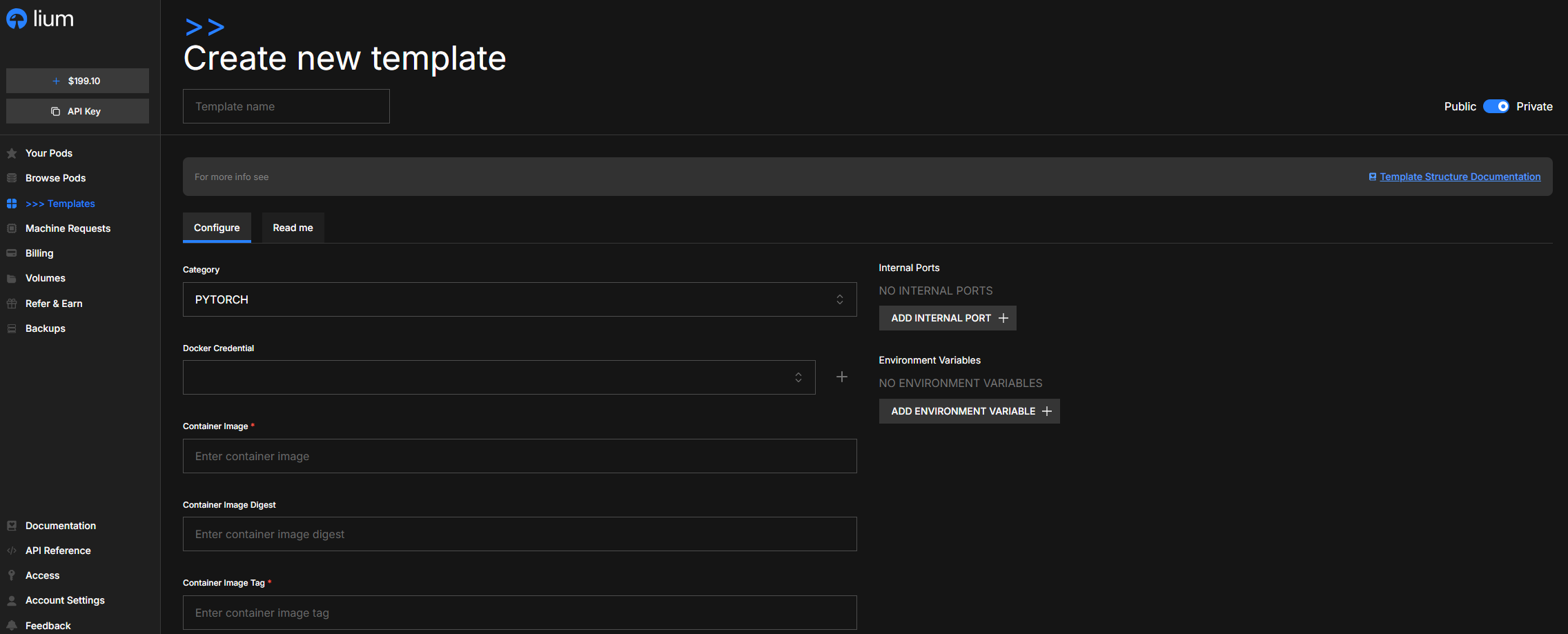
- Templates sidebar → CREATE A NEW TEMPLATE (top-right blue button).
- Give it a Template name.
- Set the visibility toggle: Private (only you can see it) or Public (everyone can use it).
- Fill in the Configure tab:
- Category — picks the icon and sorts the template into the matching tab. PyTorch / TensorFlow / Custom / …
- Docker Credential — only required if your image is in a private registry. Click + to add credentials. Lium passes them to the host at pull time only. A saved password is never returned, so editing a credential under Access → Docker Credentials means typing it again.
- Container Image — required, e.g.
pytorch/pytorch. - Container Image Digest — optional. Pin to a specific
sha256:…so the image you tested is the image that runs. - Container Image Tag — optional, e.g.
2.2.0-cuda12.1-cudnn8-runtime. If neither this field nor the image name gives a tag, Lium useslatest. - Container Start Command — runs as the container's CMD. Leave blank to use the image's default; or set something like
bash -c "pip install -r /root/requirements.txt && sleep infinity". - Entrypoint — overrides the image's ENTRYPOINT. Most users leave this blank.
- Volume — the mount path for the local persistent volume inside the container. Default
/root. Most users should leave this as/root— backups, restores, and the SSH home all assume this path. - Internal Ports — ports your software listens on (e.g.
22for SSH,8888for Jupyter,8000for vLLM). Lium maps each to a unique external port on the host. - Environment Variables —
KEY=valuepairs injected into the container.
- (Optional) The Read me tab takes Markdown that other users see when they pick your template. Document the ports, env vars, and how to run it.
- SAVE. The template appears in My templates and is selectable on Create Pod.
Verification status
Templates carry a status field — CREATED, UPDATED, VERIFY_PENDING, VERIFY_FAILED, or VERIFY_SUCCESS — and an associated verification_logs text field.
Today, automatic verification on user-created templates is disabled, so no status means a check ran. No test deploy, image pull or SSH check runs on your template, and no status gates it: every template you save is usable on Create Pod at once. What each status means today:
| Status | When you see it | What it means |
|---|---|---|
VERIFY_SUCCESS | A private or one-time template, from the moment you save it (create or edit); Lium's own templates | Saved. Despite the name, nothing was verified. |
CREATED | A public template you created | Saved. It stays CREATED: no verification is started. |
UPDATED | A public template you edited | Saved. It stays UPDATED, for the same reason. |
VERIFY_PENDING, VERIFY_FAILED | Not set on user templates today | — |
verification_logs stays empty. A script that waits for VERIFY_SUCCESS (the SDK's wait_template_ready) returns at once for a private template and times out for a public one, so treat a public template's CREATED / UPDATED as ready.
That means the burden is on you to make sure the template actually boots cleanly before relying on it for important work. Sanity-check it locally:
docker run --rm -d <image>:<tag> <start-command>
docker ps   # the container should be in the list, not exited
…or just deploy a cheap pod (RTX 3090, 1× GPU) with the template and confirm SSH lights up.
If automatic verification is re-enabled in the future, the same status / verification_logs fields will carry the result.
Common pitfalls
- Container exits immediately. Your start command must keep PID 1 alive. End it with
sleep infinity(or run a daemon in the foreground) or the pod will be marked failed. - Image not public, no credentials. The rent is refused with
image_needs_registry_credentialsbefore any node is used (Error codes). Add Docker credentials via Access → Docker Credentials, then attach them in the template's Docker Credential field. - Volume mount changed away from
/root. Backups and Jupyter still assume/root. Only change this if you really know what you're doing. - No port for SSH. Add
22to Internal Ports, otherwise the agent can't open a connection and your SSH CONNECTION field on the pod page will be empty. - Docker-in-Docker +
/root. With the default encrypted volume, nested containers cannot bind-mount/rootor anything under it (change mount propagation through procfd … no such file or directory). Keep data you pass todocker run -vunder/workspace. See Encrypted local volumes. - Docker-in-Docker template + external Volume. These work together — attach an external Volume to a DinD template and nested Docker keeps running. A few nodes are still unable to serve both; when that happens the deploy log says Docker-in-Docker was turned off, and moving the pod to another node fixes it.
Editing or deleting a template
In Templates → My templates, click EDIT on your card. Same form as creation. Changes apply to future pod deployments only — pods already running keep their original template.
Public templates that other users have rented from cannot be deleted while pods are still using them.
What gets baked into a deployed pod
When you deploy from a template, the platform records everything in the template at that moment onto the pod. Editing the template later does not retroactively change running pods. To re-deploy the latest version of a template into a fresh pod, just hit RENT NOW again.
For agents and automation: API + CLI
Templates are first-class objects in the API. Use these when you're driving Lium from a script, the CLI, or an LLM agent. You'll need an API key.
# List all templates (yours + public)
curl https://lium.io/api/templates \
  -H "X-API-Key: $LIUM_API_KEY"

# Filter by GPU model + driver — the response's `compatibility` field tells you
# whether the template's CUDA requirements line up with the target GPU.
curl "https://lium.io/api/templates?gpu_model=NVIDIA+H100+80GB+HBM3&driver_version=535.86.10" \
  -H "X-API-Key: $LIUM_API_KEY"

# Get one
curl https://lium.io/api/templates/<template_id> \
  -H "X-API-Key: $LIUM_API_KEY"

# Create one
curl -X POST https://lium.io/api/templates \
  -H "X-API-Key: $LIUM_API_KEY" \
  -H "Content-Type: application/json" \
  -d '{
    "name": "My PyTorch Template",
    "docker_image": "pytorch/pytorch",
    "docker_image_tag": "2.2.0-cuda12.1-cudnn8-runtime",
    "volumes": ["/root"],
    "environment": {"PYTHONUNBUFFERED": "1"},
    "internal_ports": [22, 8888],
    "startup_commands": "pip install -r /root/requirements.txt && sleep infinity"
  }'
The CLI wraps the same calls (lium templates list, lium templates create …). See the lium templates reference.