Backups
Lium runs a scheduled backup job for any pod you configure: it backs up a directory inside the pod to AWS S3 storage scoped to your account and removes backups older than the retention window. Use it to protect training checkpoints, model weights, and any work-in-progress that would be expensive to redo if the pod went away.
How it works
- You pick a Backup Path inside the pod and a Frequency + Retention.
- Lium starts a backup at each scheduled time.
- The selected directory is uploaded to your backup storage in AWS S3.
- Backups older than the retention window expire automatically.
- Backup status and progress appear on the pod's Backups tab and on the global Backups page.
Backup path: the rule that matters
The backup path must be the pod's local volume mount or a directory inside it. The local mount is /root for most templates—that is also your SSH home directory and where templates commonly place your code.
Backing up /root is supported, but it may include caches, downloads, and files that change while the backup runs. If you only need part of the volume, choose a stable directory such as /root/checkpoints. This usually makes backups faster, uses less storage, and reduces the chance of files changing during the operation.
✅ Valid backup paths
/root                       # entire local volume
/root/models                # one subdirectory
/root/checkpoints           # another subdirectory
/root/project/data          # nested subdirectory
❌ Invalid backup paths
/home/user/documents        # outside the local volume mount
/tmp/backup                 # temporary storage, erased on pod restart
/var/log                    # system directory outside the local volume
/mnt                        # external Volume mount
/mnt/datasets               # external Volumes are not in the backup scope
..                          # path traversal, rejected by the API
Pod backups do not include /mnt volumes. External Volumes mounted at /mnt are never part of a backup; a backup covers only the pod's local volume, which is mounted at /root by default.
If a template uses a non-default local volume mount, the rule becomes "that mount or a directory inside it." The backup form shows the pod's actual volume path.
Configure a backup in the UI
From the pod detail page:
- Click Backup in the top-right action bar.
- The Backup Configuration modal opens.
- Backup Path — enter the local volume mount or a path inside it. For example,
/root/checkpointsbacks up only that directory, while/rootbacks up the entire local volume. Prefer a stable subdirectory when possible. - Backup Frequency — between 1 and 168 hours.
- Retention — between 1 and 365 days.
- Click Save.
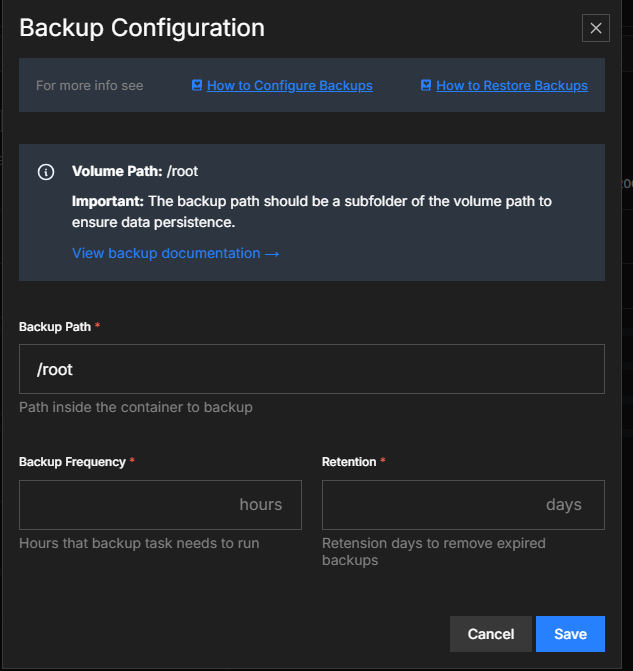
Open the same form to change or delete the configuration later. Deleting a configuration stops future scheduled backups; it does not immediately delete completed backups.
See your backups
- Per pod — pod detail page → Backups tab. This shows recent backup runs and restores for that pod.
- Globally — sidebar → Backups. Filter by type (Manual / Automatic), status, Pod ID, or name.
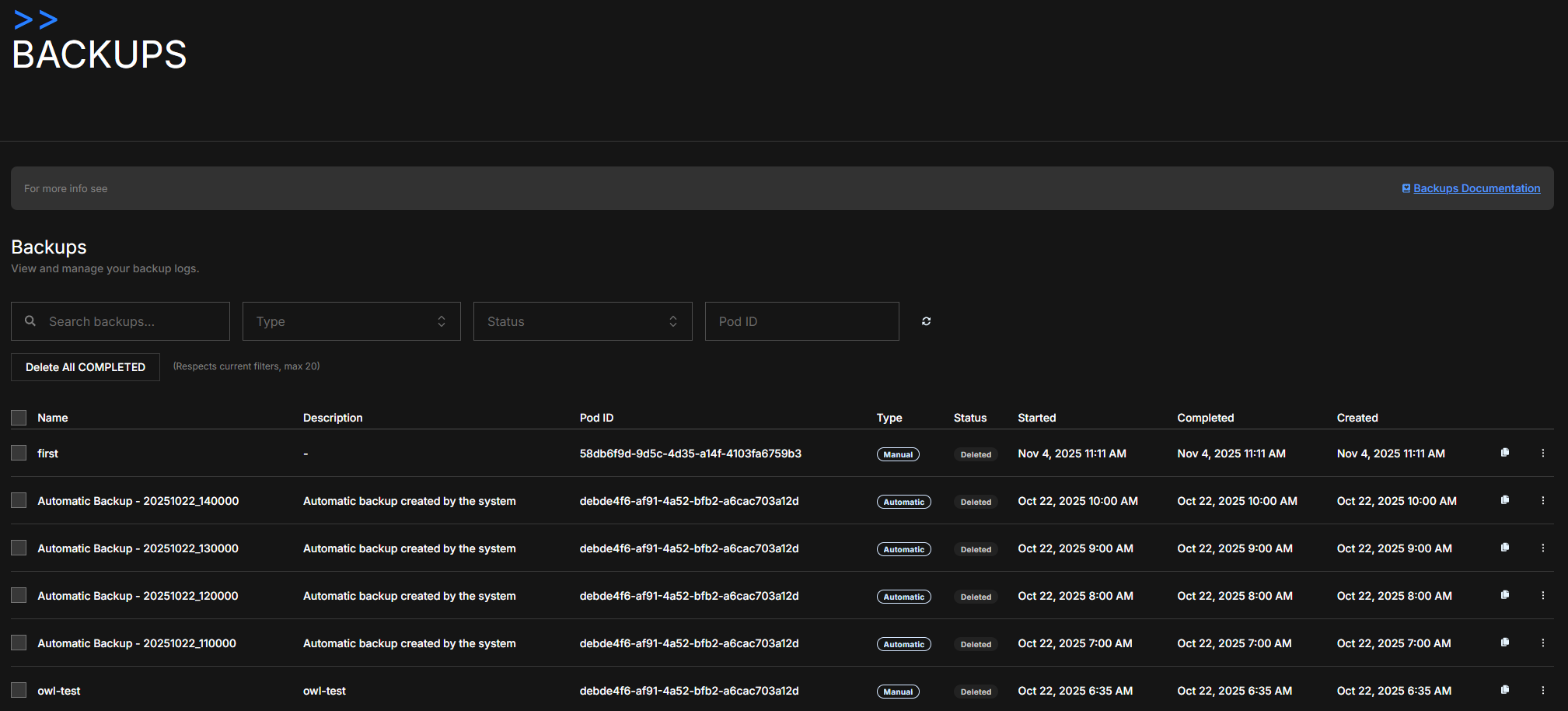
Understand backup states
- Pending / In progress — the backup has been accepted and is preparing or transferring data.
- Completed — the backup is ready to restore.
- Cancelled — a user stopped an active backup; its history and last reported progress remain visible.
- Skipped — a scheduled run did not start because another backup or restore was already using the same backup storage. It is recorded separately from a failure, and scheduling continues afterwards.
- Failed — the operation ended with an error. The row includes the reported cause.
- Deleted / Expired — the backup cannot be restored; its stored data is being removed or has expired.
Only one backup or restore can use the same backup storage at a time. A manual request returns an error when another operation is active, so no second operation starts; a conflicting scheduled attempt is shown as Skipped and the running operation continues alone.
Frequency cheatsheet
| You're doing | backup_frequency_hours |
|---|---|
| Active training run, costly to lose | 6 |
| Regular daily workload | 12–24 |
| Stable / inference-only project | 24–72 |
| Long-term archival | 168 (weekly) |
Pair frequency with Retention: longer retention uses more S3 storage. A retention period of 7–30 days is typical for active work.
What gets stored where
Backup data is stored in AWS S3 storage scoped to your account. You do not receive raw S3 credentials; access completed backups through the Restores flow, the CLI, or the API.
Completed backups remain available after the source pod stops or is deleted, until they expire or you delete them.
Billing
Backups are billed once a day, the same way as a volume:
- Storage — the backup data physically stored in S3, at $0.00005 per GB-hour (about $0.036 per GB-month). The live rate is
volume_gb_hour_price_usdin the public shared config. - Transfer — data read out of the backup store, at what AWS bills for that day's data transfer (AWS S3 pricing).
- Retention runs — free.
- Pod stopped or deleted — completed backups remain in S3 until they expire or you delete them. Storage charges continue.
To stop backup storage charges, delete the completed backups you do not need. Delete the backup configuration as well if you do not want future scheduled backups.
Trigger a manual backup
On the pod's Backups tab, click Back up now to start a one-off backup. The configured backup path is used. You can also run lium bk now <pod> or call POST /pods/{pod_id}/backup.
Cancel or delete a backup
Cancellation and deletion are separate actions:
- Cancel stops an active backup while keeping its history and last reported progress. Partial uploaded data is cleaned up by the platform.
- Delete removes the stored data for a completed backup. The history row remains so the outcome is still visible while storage cleanup finishes.
Use the actions shown beside the backup in the webapp, or run lium bk cancel --id <backup-id> and lium bk delete --id <backup-id>.
Update or delete a configuration
On the pod detail page, click Backup to change or delete its configuration. Deleting the configuration does not delete completed backups.
For agents and automation: API + CLI
# Create a backup configuration
curl -X POST https://lium.io/api/backup-configs \
  -H "X-API-Key: $LIUM_API_KEY" \
  -H "Content-Type: application/json" \
  -d '{
    "pod_id": "<your-pod-id>",
    "backup_path": "/root/checkpoints",
    "backup_frequency_hours": 6,
    "retention_days": 30
  }'

# List configurations
curl https://lium.io/api/backup-configs \
  -H "X-API-Key: $LIUM_API_KEY"

# Get the configuration for one pod
curl https://lium.io/api/backup-configs/pod/<pod-id> \
  -H "X-API-Key: $LIUM_API_KEY"

# Update a configuration
curl -X PUT https://lium.io/api/backup-configs/<config-id> \
  -H "X-API-Key: $LIUM_API_KEY" \
  -H "Content-Type: application/json" \
  -d '{
    "backup_path": "/root/checkpoints",
    "backup_frequency_hours": 12,
    "retention_days": 90
  }'

# Delete a configuration; completed backups are kept separately
curl -X DELETE https://lium.io/api/backup-configs/<config-id> \
  -H "X-API-Key: $LIUM_API_KEY"

# Start a manual backup
curl -X POST https://lium.io/api/pods/<pod-id>/backup \
  -H "X-API-Key: $LIUM_API_KEY" \
  -H "Content-Type: application/json" \
  -d '{"name": "before-upgrade", "description": "Manual checkpoint"}'

# Cancel an active backup, retaining its history
curl -X POST https://lium.io/api/backup-logs/<backup-id>/cancel \
  -H "X-API-Key: $LIUM_API_KEY"

# Delete the stored data for a completed backup
curl -X DELETE https://lium.io/api/backup-logs/<backup-id> \
  -H "X-API-Key: $LIUM_API_KEY"
Configuration schema
| Field | Type | Range | Notes |
|---|---|---|---|
pod_id | UUID | — | Pod whose local volume is backed up |
backup_path | string | Up to 500 characters | Local volume root or a path inside it; .. is rejected |
backup_frequency_hours | integer | 1–168 | 168 = weekly |
retention_days | integer | 1–365 | Older backups expire automatically |
CLI shortcuts: lium bk now / set / show / logs / cancel / delete / restore / restore-cancel / restore-logs / rm (reference). Get an API key before using the API or CLI.