Quickstart
Get started in 5 min
Goal: a running GPU pod you can SSH into. All steps are in the dashboard at lium.io.
1. Create an account
Sign up at lium.io/register — with an email (click the verification link before you log in), GitHub, Google, or a fingerprint if you don't want to give an email. Then open the account menu (your name, bottom-left of the sidebar), click Billing and TOP UP by card, crypto or TAO — your account balance shows in the top-left of the dashboard. Deploy is refused until the balance is above 15 minutes of the node's hourly price; a $0 balance gets a bare Insufficient balance. Free signup credit is not guaranteed — check the balance before you count on it.
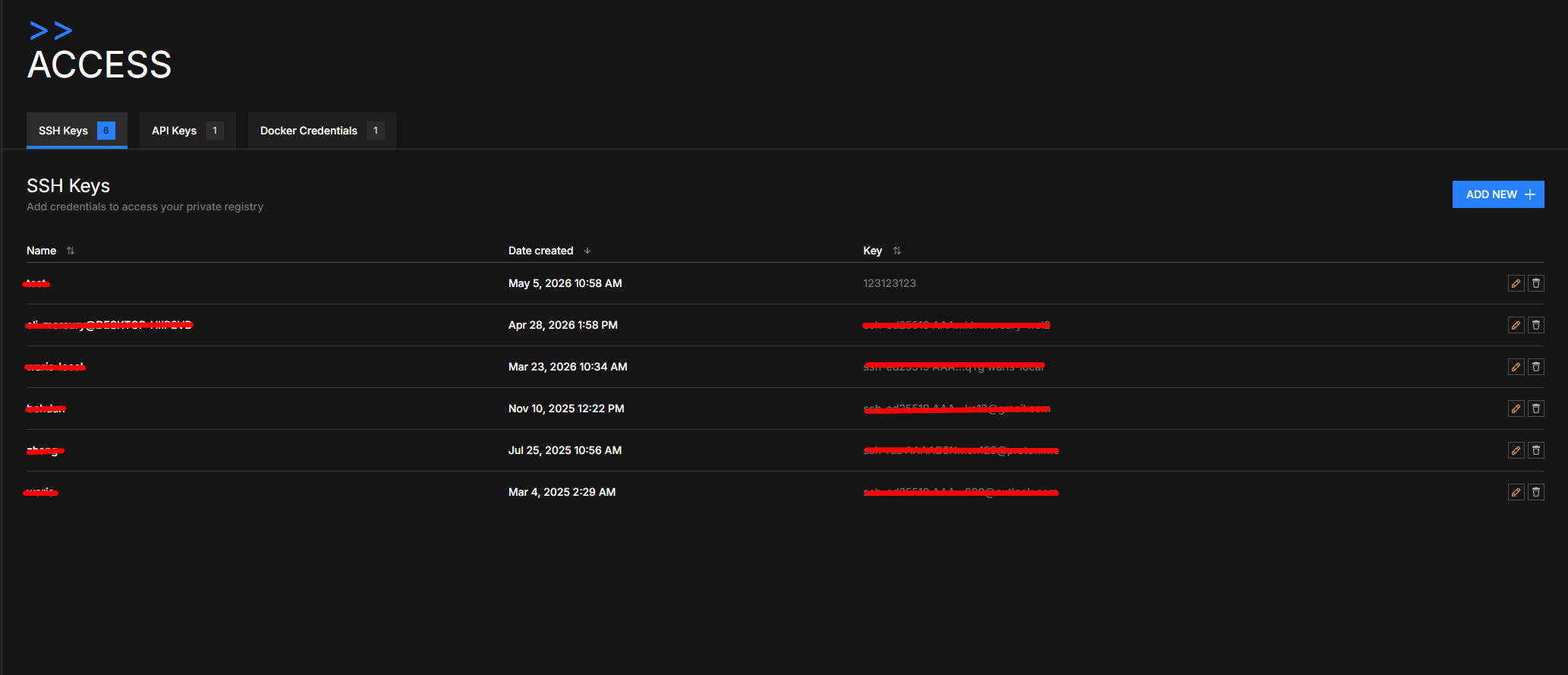
2. Add an SSH key
Sidebar → Access → SSH Keys → ADD NEW +. Paste your public key (e.g. ~/.ssh/id_ed25519.pub) and give it a name.
# Generate a key if you don't have one
ssh-keygen -t ed25519 -C "you@example.com"
cat ~/.ssh/id_ed25519.pub
3. Pick a machine
Click Browse Pods in the sidebar. Use the right-hand filter rail to narrow by GPU type (RTX 4090, A100, H100, L40, …), GPU count, location, Confidential Computing for CVM-isolated nodes, or GPU Profiling (ncu) for machines where Nsight Compute profiling works.
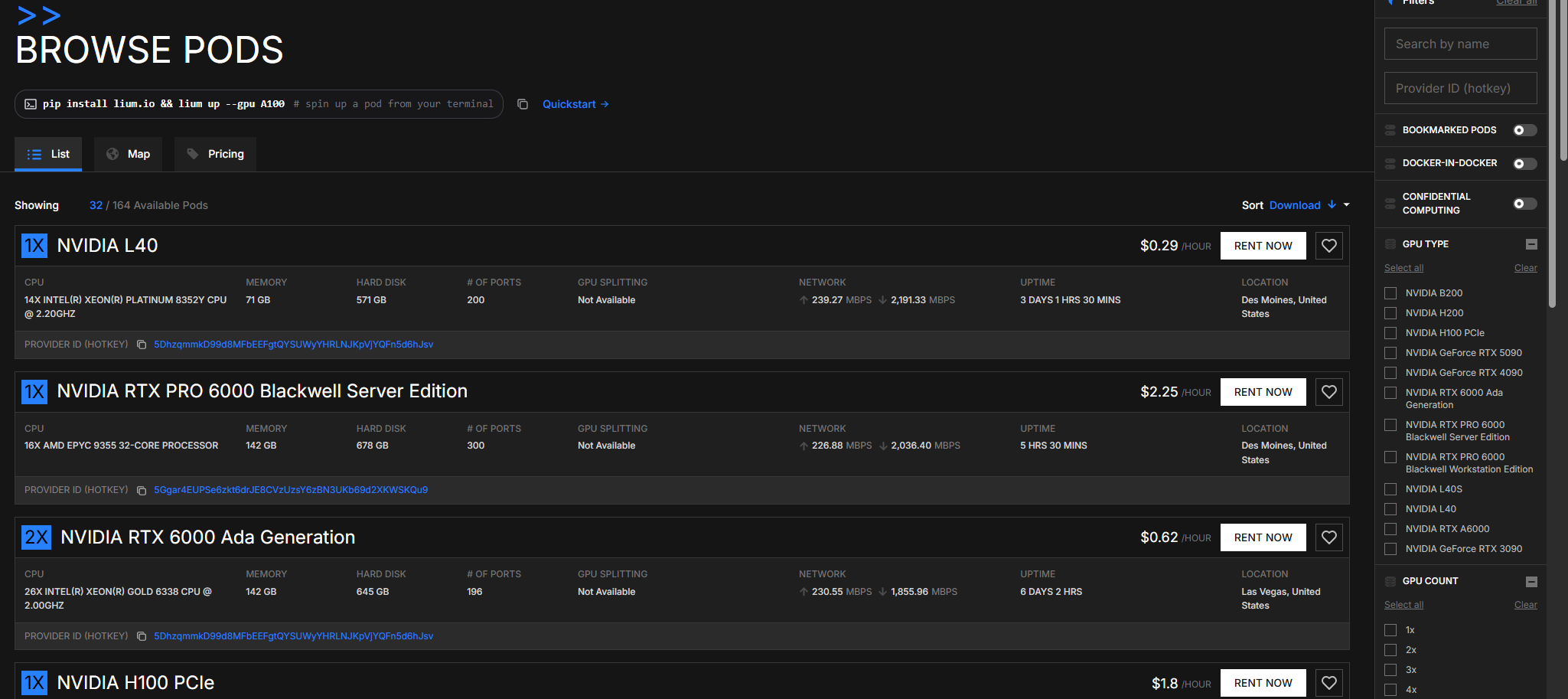
A yellow Reduced power limit badge on a node card means the node's GPU power limit is set below the card's default, so expect somewhat lower peak performance than the same GPU at full power; hover it for the watts. The badge also shows on the Create Pod page and on the pod's own page after you rent. No badge does not always mean full power: a node's limit cannot be judged while a Lium default job holds its own temporary cap on it, and a limit set at the card's driver minimum is not judged while such a job runs. From the API, GET /executors?hide_power_limited=true leaves out every node that carries the badge.
Toggle the Confidential Computing filter on the right. CVM nodes prevent the GPU provider from reading your pod's memory or filesystem. See Pod security.
4. Configure and deploy
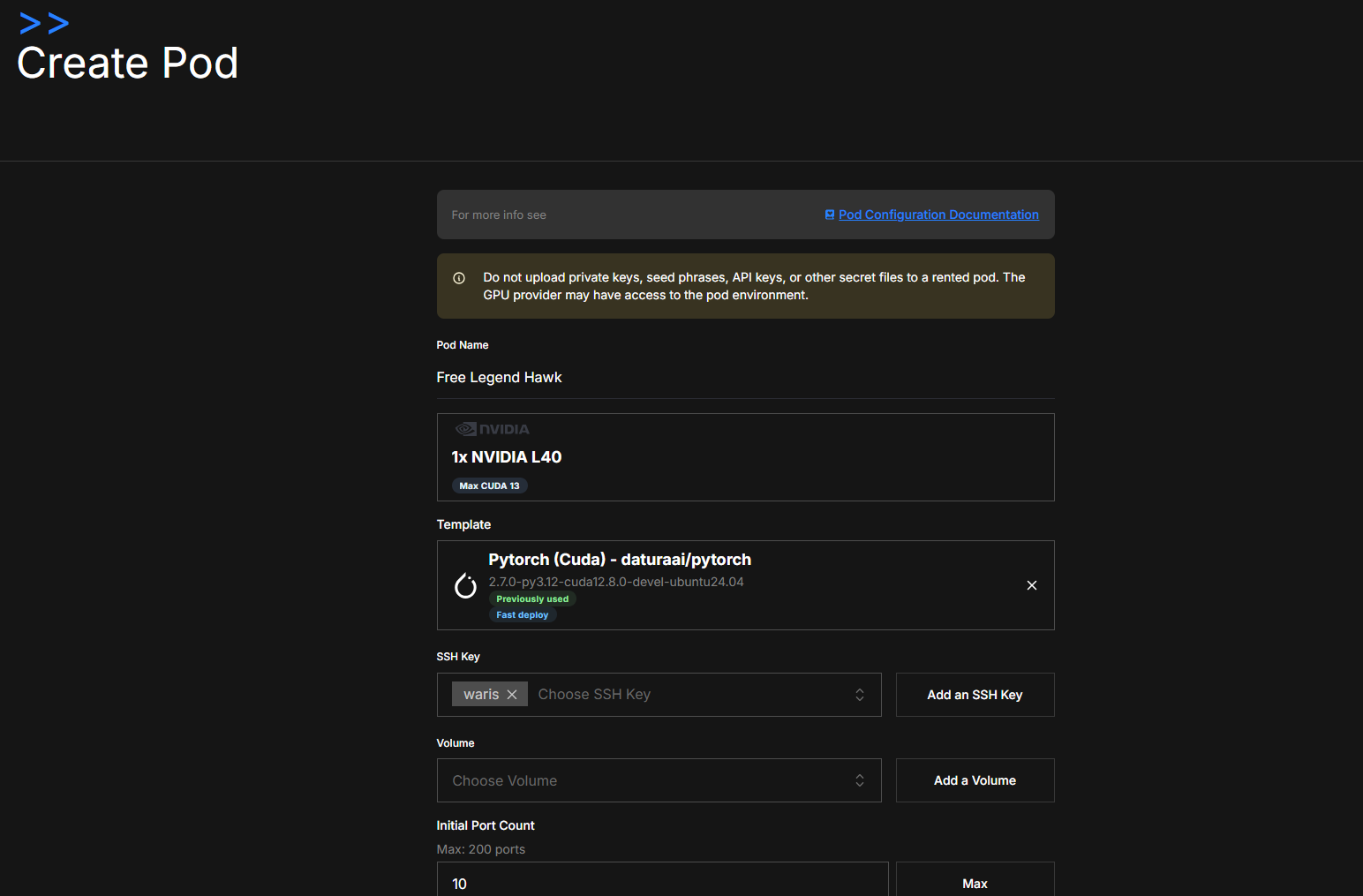
Click RENT NOW on the row you want. On the Create Pod page:
- Tweak the auto-generated Pod Name if you want.
- Confirm the Template —
Pytorch (Cuda) - daturaai/pytorchis selected by default. - Confirm your SSH Key is in the chip list.
- (Optional) attach a Volume for persistent storage at
/mnt. - (Optional) set Auto-Termination so the pod stops billing after N hours.
- Review the Total cost in the right-hand summary.
- Click Deploy.
5. Connect via SSH
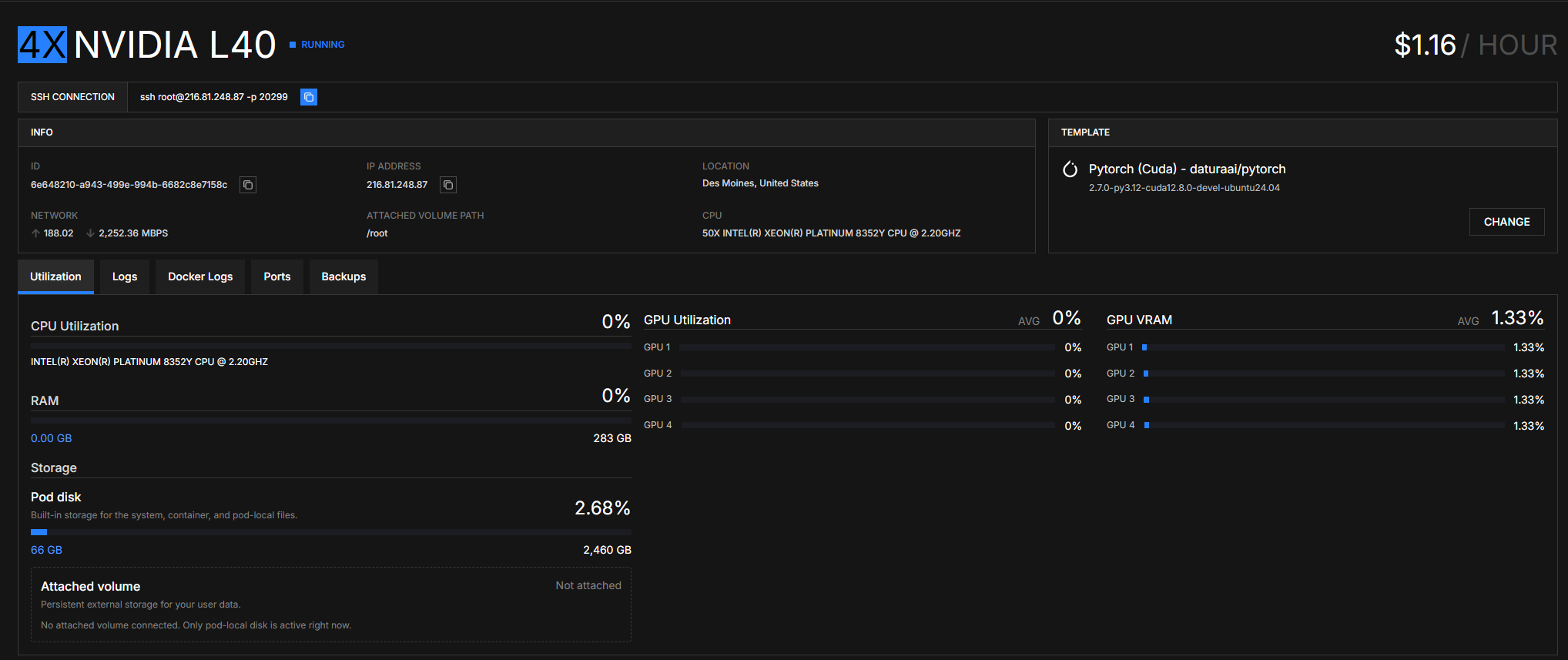
Open Your Pods. Once the card flips to RUNNING, click SEE DETAILS. Copy the SSH command from the SSH CONNECTION field at the top:
ssh root@<pod-ip> -p <pod-port>
If ssh asks for a password, the pod is fine: your client is offering a different key from the one you added in step 2. ssh only tries the default keys (~/.ssh/id_*) on its own, so point -i at the matching private key file (not the .pub file you uploaded):
ssh -i ~/.ssh/<your_private_key> root@<pod-ip> -p <pod-port>
You're in. Your home directory is /root and is mapped to the pod's local volume. Anything outside /root (and /mnt if you attached a volume) is not persisted across pod restarts.
Next steps
- The same journey with timings, the CLI, a GPU check and your first result file → Your first hour
- Save your work between sessions → Volumes
- Avoid losing checkpoints if a pod dies → Backups
- Spin up the same environment from one image → Templates
- Cap costs with auto-termination → Scheduled termination
- Drive everything from the CLI / an agent → API Keys