Restores
A restore pulls a completed backup from AWS S3 and writes its files into a new or empty directory on a target pod. Use it to:
- Recover work from a pod that crashed or was terminated.
- Migrate work to a different machine or GPU type.
- Start a new pod with an existing dataset, checkpoint, or model.
Two ways to restore
Option 1 — Restore into a running pod
Use this when you already have a pod and want to bring backed-up data into it.
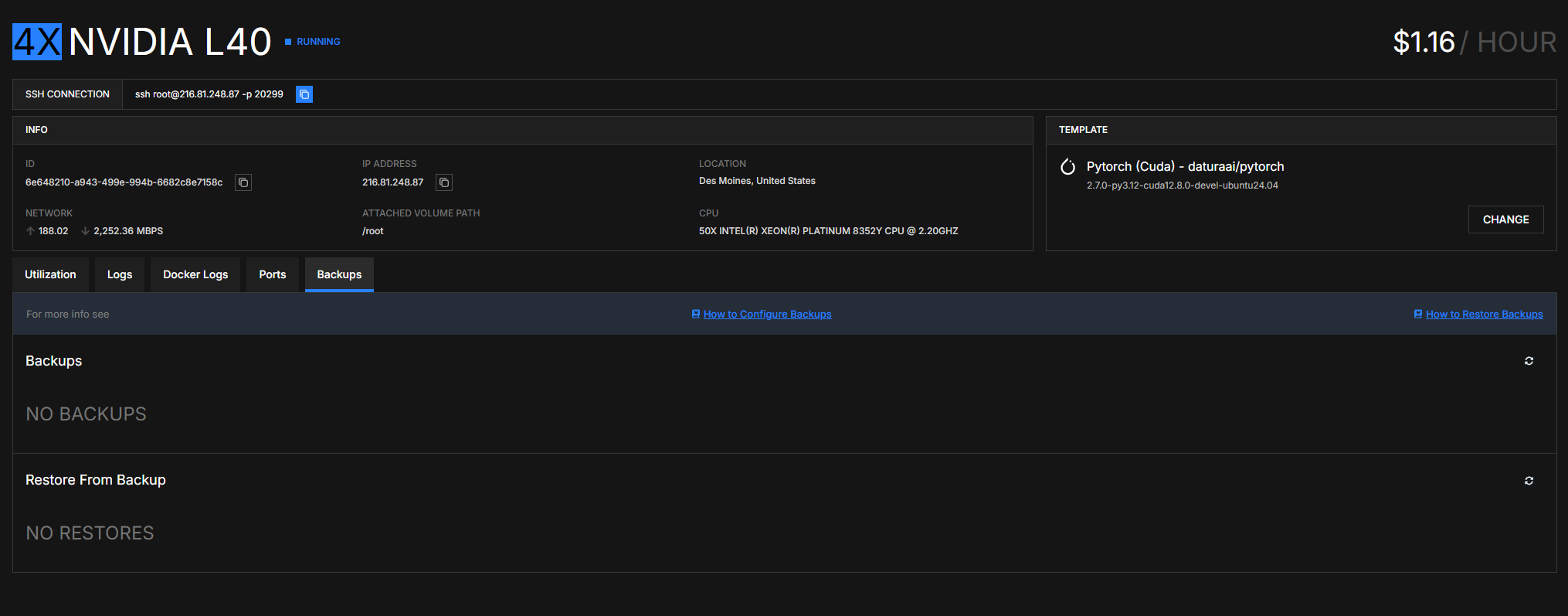
- Open the pod's detail page.
- Click the Backups tab.
- Find the completed backup you want and click Restore. Completed backups remain available even after their source pod has been deleted.
- The modal asks for:
- Target pod — the pod where the files will be restored.
- Restore Path — a new or empty subdirectory of the target pod's local volume, such as
/root/restored.
- Click Confirm.
The pod remains available while the restore runs. You can use other directories, but do not add, modify, or remove files in the restore path until the operation completes.
Option 2 — Restore while creating a new pod
Use this when you want to rent a new pod and restore data to it automatically.
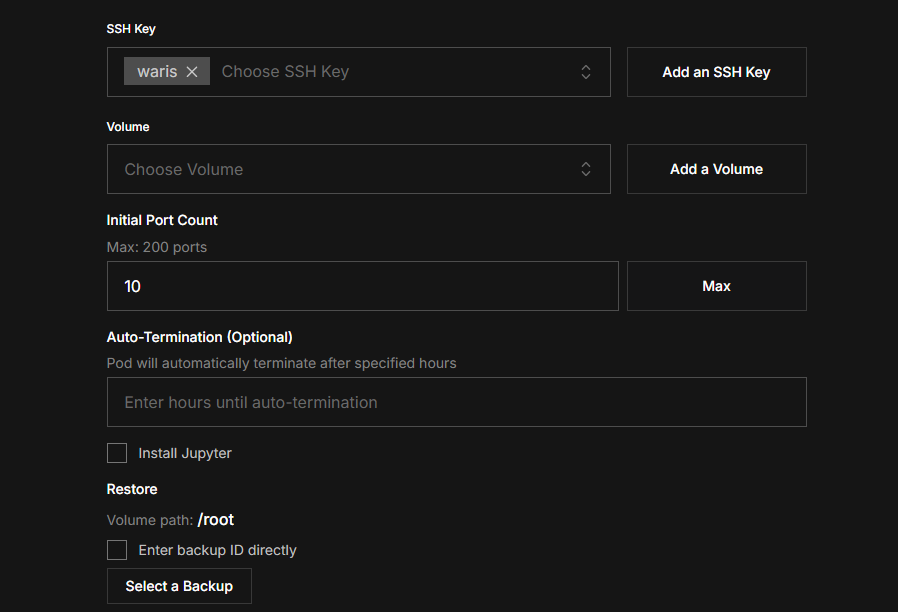
- Go to Browse Pods and click RENT NOW on a node.
- On the Create Pod page, scroll to Restore near the bottom.
- Click Select a Backup to choose a completed backup, or enter its ID directly.
- Enter a new or empty restore path inside the pod's local volume, such as
/root/restored. - Click Deploy.
The pod starts normally and becomes accessible before the restore finishes. The restore then continues in the background. Follow its progress on the new pod's Backups tab, and do not modify the restore path while it is in progress.
Restore path: the rule that matters
The restore path must be a new or empty subdirectory of the target pod's local volume mount. The default mount is /root, so the default restore path is /root/restored.
✅ Valid restore paths
/root/restored               # default restore directory
/root/models-from-backup     # separate directory for restored models
/root/checkpoints-restored   # separate directory for checkpoints
/root/project/restored-data  # nested subdirectory
❌ Invalid restore paths
/root                        # the volume root itself
/root/existing-project       # invalid when it already contains files
/home/user/documents         # outside the local volume mount
/tmp/restored                # temporary storage, erased on pod restart
/var/log                     # system directory
/mnt/datasets                # external Volume, not the local volume
restored                     # relative path; an absolute path is required
This restriction prevents a background restore from overwriting files used by the new pod, including its access and startup configuration.
If the backup contains everything that was under /root, restore it to /root/restored. This keeps the restored data separate from the new pod's files so you can inspect it and move selected files afterwards.
The pod may be running and accessible while restoration continues. Writing to the destination at the same time can make the result unreliable.
Watch progress
Both restore flows create a restore log on the target pod's Backups tab under Restore From Backup. It shows the status, progress, timestamps, restore path, and any error.
An active restore can move through these stages:
- Waiting for pod — the new target pod is still starting.
- Preparing restore — the backup is being scanned before files are written. The percentage may remain at zero, while the number of files discovered can increase.
- Restoring files — data is being written to the restore path. The UI and CLI can show percentage, bytes and files, throughput, and a time estimate after enough progress has been observed.
- Finalizing restore — the files are restored and the final result is being recorded.
Completed rows retain useful outcome metrics without continuing to show active-stage or time-remaining text. The CLI shows the same operation through lium bk restore-logs.
Cancel a restore
Use Cancel beside an active restore, or run lium bk restore-cancel --id <restore-id>. Cancellation stops further work, but files already written to the destination may remain. Remove the partial destination or choose another new or empty directory before retrying.
What restore does (and doesn't do)
- It restores filesystem data from the selected backup into the restore path.
- It does not restore the source pod's template, environment variables, ports, or other pod settings.
- It does not stop or restart the target pod's running processes.
- If the restore fails, the target pod remains running. The destination may contain partial data, so remove it or choose another empty directory before retrying.
When restores fail
The restore log shows an error message. Common reasons include:
- Backup expired or deleted. Check the backup's status on the global Backups page.
- Restore path is invalid. It must be an absolute, new or empty subdirectory inside the target pod's local volume;
/rootitself is not allowed. - Restore path is not empty. Remove the existing contents or choose another directory before retrying.
- Target disk is full. Run
df -h /rootinside the target pod to check its available space. - Another operation is active. A backup or restore is already using the same backup storage. Wait for it to finish and retry.
First, you need a backup
Restores require a completed backup. If you have not configured one yet, see Backups.
For agents and automation: API + CLI
# Trigger a restore into a running pod
curl -X POST https://lium.io/api/pods/<target-pod-id>/restore \
  -H "X-API-Key: $LIUM_API_KEY" \
  -H "Content-Type: application/json" \
  -d '{
    "backup_id": "<backup-id>",
    "restore_path": "/root/restored"
  }'

# List restores for the target pod
curl https://lium.io/api/pods/<target-pod-id>/restore-logs \
  -H "X-API-Key: $LIUM_API_KEY"

# Cancel an active restore
curl -X POST https://lium.io/api/restore-logs/<restore-id>/cancel \
  -H "X-API-Key: $LIUM_API_KEY"

# Restore with the CLI
lium bk restore <target-pod> --id <backup-id> --to /root/restored
lium bk restore-logs <target-pod>
lium bk restore-cancel --id <restore-id>
See the API reference for the complete request and response schemas. Get an API key before using the API or CLI.