API Keys
Most renters never need this page. Use it when:
- You want to drive Lium from the CLI (
lium ...). - You want an AI agent (Claude, Cursor, your own) to deploy and manage pods on your behalf via the API or MCP server.
- You're integrating Lium into a CI pipeline, a Slack bot, or your own tool.
- You run several agents on one account and want each to see only its own pods, spend no more than you allow, and never touch payments — one key per agent, scoped, fenced to its own pods and budgeted.
If you're just here to rent a GPU and SSH in, the dashboard at lium.io is the friendlier path — see Quickstart.
What an API key does
An API key authenticates HTTP requests to https://lium.io/api/... as you. Anyone with the key can:
- Deploy pods, attach volumes, start backups — and be billed to your account.
- Read your pod list, backup history, and account balance.
- Delete things — unless you narrow the key with scopes when you create it: a
read-only key can look but change nothing.
What no key can do unless you say so when you create it: move money. Card payments, credit transfers and the auto top-up read answer a 403 to every key that was not given the billing scope — and a key made on the dashboard, with the CLI or the SDK never has it by default. Crypto top-ups (lium fund, lium topup) still accept a rent or manage key until the operator turns that gate on.
Treat the key like a password. Never paste it into a public repo, an issue tracker, a screenshot, or a non-CVM pod.
Generate a key
- Open Access in the sidebar.
- Click API Keys.
- ADD NEW +, give the key a Name (something like
cli-laptop,ci-deploy-bot,claude-agent), ADD. - The full key shows in a copy-to-clipboard chip. The table keeps the full key: the masked Key column's copy button copies it again any time, except a key holding
billing: save that one when you create it.
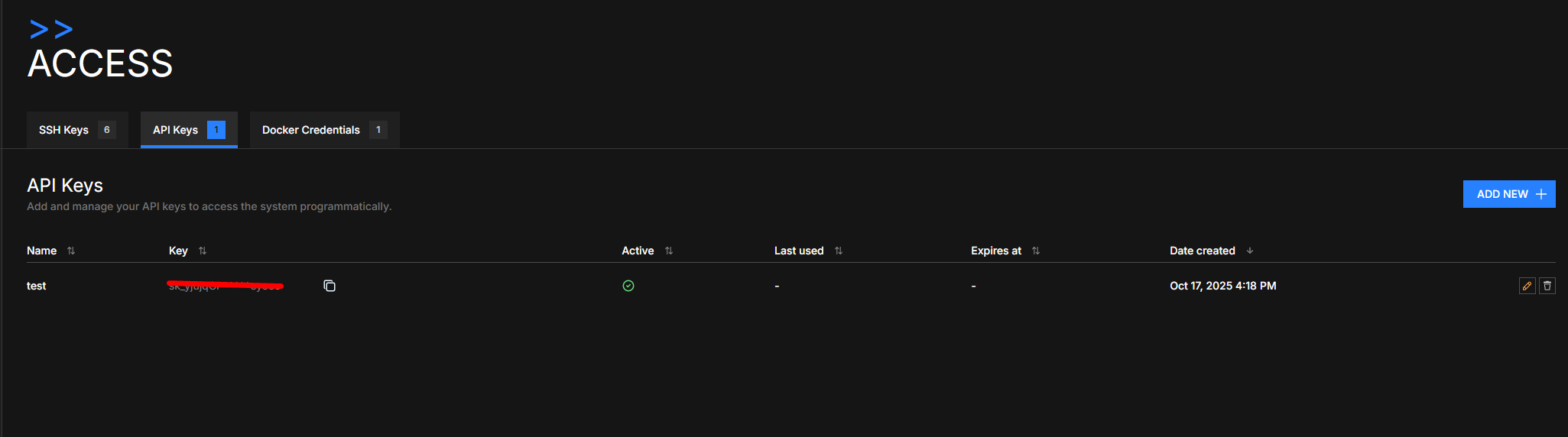
The list view shows each key's Name, masked Key prefix, Active flag, Last used, Expires at, and Date created.
API_KEY_SCOPED_DASHBOARD_ENABLEDOnce the dashboard update lands and the switch is on, the ADD NEW + dialog also has a scope picker (one checkbox per scope with a plain sentence next to it, a "What this key can do" list that follows your choice, and a warning next to Billing that the dialog repeats before it creates the key), a pod visibility choice (only its own pods, or the whole account) and three budget fields (daily, monthly, lifetime). The table gains Scopes, Pods, Spent today / month / total, Budgets and Refused columns, and ✏️ Edit sets or clears a key's budgets. The words in the picker are the server's own (GET /keys/scopes, below), so the dashboard, the CLI and the SDK describe a scope the same way. Until then the dialog makes a key with the default scopes and the server's default visibility, as today; everything below works through the API from the day the backend ships; the dashboard follows.
Use the key
Pass the key in the X-API-Key header on every request:
export LIUM_API_KEY=sk_yjujqGP...full-key

curl https://lium.io/api/pods \
  -H "X-API-Key: $LIUM_API_KEY"
For the CLI:
pip install lium.io                   # or: curl https://lium.io/install.sh | sh
lium init                             # guided login (or set LIUM_API_KEY in your env)
lium ps                               # list your pods
For the SDK and MCP server, set LIUM_API_KEY in the environment. The environment variable takes precedence over ~/.lium/config.ini; API Authentication lists every source, the order they are read in, and how to check which key is in use.
Scopes
Scopes are live. A key holds any subset of read, rent and manage, or billing on its own; a key created without choosing holds read, rent and manage — never billing. Whatever its scopes, a key can always see, reboot, edit and delete the pods it rented itself.
| Scope | Adds | Without it |
|---|---|---|
read | see every pod of the account (when the key's pod visibility is the whole account), nodes, templates, volumes, the spend statement and the account event log | the key sees only the pods it rented (GET /pods lists just those; another pod's detail, logs and metrics are a 404 — its statement and event log are fenced by pod visibility own, not by this scope) |
rent | create pods; like manage, it also unlocks the account-wide writes a read-only key is refused (SSH keys, templates, volumes) | POST /executors/{id}/rent is a 403 |
manage | reboot / edit / delete / restore / add SSH keys to pods it did not rent (whole-account visibility only) | those calls are a 403 naming the missing scope |
billing | move money: card payments and saved cards, crypto top-ups (TAO, TMC Pay), credit transfers to another account (behind a switch, below), the auto top-up read, the payment ledger (GET /transactions) and the crypto invoice list (GET /tmc-pay/invoices). Held alone — see The billing scope | every money route except crypto top-ups is a 403 naming the billing scope; crypto top-ups still accept rent or manage until the operator turns API_KEY_MONEY_ROUTES_DENY_ENABLED on |
Scopes fence off pods and money, not the rest of the account: SSH keys, templates and volumes go through with rent or manage; only a read-only key is refused there, with a 403 that names the key and the call.
The list of scopes, the sentence for each, what a key holding it can do and the routes it opens come from one place on the server — GET /keys/scopes, no credential needed. The dashboard's picker (not released yet), lium keys scopes (since lium 0.9.1) and the SDK print those words rather than their own:
API=https://lium.io/api
curl -s $API/keys/scopes | jq '.scopes[] | {scope, description, default}'
The billing scope
An agent that tops the account up, transfers credits or pays by card through the API needs a key with billing. It is never on by default: name it when you create the key ("scopes": ["billing"], or tick Billing in the dashboard's picker (not released yet), which warns that the key can move money). Save a billing key from the POST /keys response; do not count on copying it from the table later.
billing is held alone. POST /keys with ["billing", "rent"] or ["billing", "manage"] is a 422 (the 'billing' scope is held alone: a key that pays cannot also read, rent or manage pods) — and so is ["billing", "read"], because nothing in the paying flow needs read: a billing key already reaches its balance (GET /users/me), the payment ledger (GET /transactions), the TMC Pay currency list and the scope table without it. So the agent you trust with the balance holds no pods, and the agent that runs pods cannot reach the money. A key holding billing reaches payments, the auto top-up read and those four reads — nothing else: GET /pods, nodes, SSH keys, templates answer a 403 saying the key holds the billing scope only. Give an agent two keys if it must both rent and pay. Crypto wallets and changing auto top-up stay on a signed-in session (a stored wallet is the referral payout destination; the tick's auto-pay does not stamp a key).
What a billing key can do, and what fences it:
- Top up by card —
POST /stripe/create-checkout-sessionand the saved-card routes under/stripe/payments/payment-methods, andPOST /payments/topup(not released), which charges a saved card with no browser step (billing).POST /coinbase/create-chargeis a 410 today (Coinbase Commerce is retired) and stays in thebillingfamily for the day it comes back. - Top up with crypto —
POST /tao/create-transferandPOST /tmc-pay/create-invoice. These two are the routes the released CLI already calls with its login key (lium fund,lium topup), so they keep taking a key withrentormanageuntil the operator turnsAPI_KEY_MONEY_ROUTES_DENY_ENABLEDon, once a CLI release asks its users for abillingkey. Every other money route asks forbillingfrom the day this ships — no key could reach any of them before. The/crypto-walletsroutes stay on a signed-in session: a stored wallet is where referral earnings go, not a top-up method. - Transfer credits to another account —
POST /users/me/transfer-credits. This is money leaving your account through a key, which no key could do before, so it is behind its own switch,API_KEY_BILLING_TRANSFER_ENABLED(off; a billing key gets a 403 naming the switch until it is on). Once the switch is on, a billing key without a budget is still a 403 — set a daily, monthly or lifetime budget first, so a leaked key cannot move the whole balance. The key's budgets count the transferred amount. - Auto top-up —
GET /users/me/auto-top-upon a billing key.PUTis a signed-in session only, so a budgeted key cannot set an amount the tick would charge without counting it. - Every top-up or transfer a key makes is stamped with the key:
api_key_idandapi_key_nameon the transaction (GET /transactions) and on the credit-transfer row — for a card or TAO top-up, first on the pending row the start writes, then on the deposit row once the payment lands — and the budgets count the amount the moment the request is made.
Browser sessions are never scoped: the dashboard's Billing page works as it always did.
Recipes:
- Sandboxed agent —
["read", "rent"]with pod visibilityown. It can rent, watch, work on and tear down its own pods and cannot list, open or change anyone else's; it cannot move money. - Monitor —
["read"]. Dashboards and cost scripts; changes nothing. - Treasurer —
["billing"], with a monthly budget. Tops up, reads the auto top-up, transfers credits once that switch is on; sees no pod. - Operator / CI that cleans up after others — the default (
read,rent,manage) with pod visibilityaccount.
Scopes are chosen when the key is created and cannot be widened later — create a new key instead. Every key created before scopes existed, and every key created without choosing, holds read, rent and manage. Key creation is POST /keys from a logged-in session (a key can never mint keys) with the scopes in the body:
{"name": "claude-agent", "scopes": ["read", "rent"]}
Each pod records the key that rented it (created_by_api_key_id and api_key_name in GET /pods), and the account event log names the key behind every action.
Pod visibility: own pods, or the whole account
Besides its scopes, every key has a pod visibility:
pod_visibility | The key sees and controls |
|---|---|
own | only the pods it created. A pod another key or the browser created does not exist for it: GET /pods leaves it out, its detail, logs, metrics, statement and event log are a 404 (or []), and a rename, reboot or delete is a 403 naming the rule — whatever scopes the key holds, and through the pod's backups and restores too. Event and statement lists name only the key's live pods. Backups outlive the pod: the creating key is stored on the backup configuration, so that key can list, restore and delete them while they stay billed. Volumes, templates, SSH keys and registry credentials stay account-wide, as for scopes — a volume attached to another key's pod is listed without that pod, and deleting it says only that a pod is using it. |
account | every pod of the account, within the key's scopes: read sees them, manage reboots, edits and deletes them. |
Name it when you create the key ("pod_visibility": "own" or "account" on POST /keys; the dashboard's selector (not released yet) and lium keys create --pod-visibility own|account (since lium 0.9.1) do the same). A key created without choosing is account today and becomes own when the operator flips the server default (API_KEY_DEFAULT_OWN_PODS_ENABLED, once the CLI and SDK let you ask for account; GET /keys/scopes reports which default is in force). Every key from before this existed, the "Default" key your account was born with, and the key lium init makes are account whatever the switch, so nothing you already run changes. Visibility, like scopes, is fixed at creation.
This is the "many agents, one account" setup: give each agent its own own key and they cannot see each other's pods; keep one account key (or the dashboard) for yourself to see everything. Reads answer 404 on purpose — an agent cannot learn from the answer that another pod exists; a write it attempts anyway is refused with a 403 that names the rule.
Budgets
A key can carry three budgets, in USD: daily (daily_budget_usd, one UTC day), monthly (monthly_budget_usd, one UTC calendar month) and lifetime (max_budget_usd). Each counts what the key has spent in its window: the charges of the pods that key created — the same per-second ledger your billing page reads, each row stamped with the key — plus, for a billing key, the top-ups and transfers it made. A budget is enforced at four moments:
- New rental past a budget → refused.
POST /executors/{id}/rent(and rent-by-spec, cluster rent) through a key that does not have 15 minutes of the pod's price left under each of its budgets is a402witherror.codeAPI_KEY_BUDGET_EXCEEDED, so a key a few cents short of its line never starts a pod the next billing tick stops. The body carrieswindow(daily,monthlyormax),budget_usd,spent_usd,amount_usd(15 minutes of the pod's price) andapi_key_id. The account's balance rules run first and are unchanged. - Making a pod run longer past a budget → refused. Moving a pod's scheduled removal later (
POST /pods/{id}/schedule-removalwith a later time) or cancelling it (DELETE /pods/{id}/schedule-removal) through a key at or past a budget is the same402. Moving the removal earlier always goes through. - A top-up or transfer that would pass a budget → refused.
POST /stripe/create-checkout-session,POST /tao/create-transfer,POST /tmc-pay/create-invoiceandPOST /users/me/transfer-creditsthrough abillingkey answer the same402when the amount asked would take the key past a budget (amount_usdis the sum asked). Nothing is charged; the same check runs behindlium fund,lium topupand the card top-up (since lium 0.9.1). A card or TAO top-up counts from the moment it is started, not from when the money lands: the start is held against the key's budgets as a pending row (it shows onGET /transactionsas "top-up started through API key …") until the payment settles — the deposit row then carries the key (a TAO deposit is matched to the start by its amount, so another deposit of the account is never taken for the key's; two starts of the same amount are matched oldest-first) — or the Checkout page expires, or the pay page could not be built, or the start goes unpaid for an hour (a card Checkout: its 24 hours): the pending row then stops counting and is closed as failed ("not completed") on the next billing round. A TAO deposit that lands later still settles its start, up to seven days back, and counts from the day it lands — waiting out the hour buys no uncounted top-up. Two requests racing under one key are checked one after the other, each seeing the other's row. - Running pods past a budget → removed. On the billing tick that takes the key's spend to or past a budget, every running pod that key created is deleted through the same worker DELETE an empty balance uses, not a stop: the container is removed and data outside a volume or backup is lost. The rental closes as
api_key_budget_exceeded(the account still has balance), the key's ledger gets abilling tickrow, and you get the same "your pods were stopped" e-mail the empty-balance path sends, its subject and pods line naming the key and the budget it reached. Pods other keys or the browser created keep running.
A key with no budget is unlimited for rent and for a billing-key top-up; a credit transfer through a billing key still needs a budget first (a leaked key with no cap cannot move the whole balance). A browser session is never budgeted. A reboot or template switch of a pod the key already runs is not a new rental and is not checked. A rent or manage key's legacy lium fund / lium topup start is not spend, so those routes do not 402 it.
Every refusal is a row on the key's ledger — api_key_budget_refused: when, the route (POST /executors/{id}/rent, POST /users/me/transfer-credits, …), the window hit, the amount asked, the budget and the spend at that moment. Read it with GET /keys/{id}/refusals (newest first, 50 at most) from a signed-in session or from the key itself, whatever its scopes (a billing key included) — an agent may read its own key's ledger to learn why it was refused, never a sibling key's (404). lium keys show (since lium 0.9.1) prints it as Refused: 3 today — last: ….
Each budget is at least $1 and at most cents (25, "150.50"; 0.5 or 10.005 are a 422). Set them when creating the key, or later from a signed-in session with PATCH /keys/{id} — a key can never lift its own budget; null clears one, a field you leave out is left as it is:
API=https://lium.io/api

# at creation: $20 a day, $300 a month, $2000 over the key's life
curl -X POST $API/keys -H "Authorization: Bearer $JWT" -H "Content-Type: application/json" \
  -d '{"name": "agent-1", "scopes": ["read", "rent"], "daily_budget_usd": 20, "monthly_budget_usd": 300, "max_budget_usd": 2000}'

# later: raise the daily budget, leave the other two alone
curl -X PATCH $API/keys/$KEY_ID -H "Authorization: Bearer $JWT" -H "Content-Type: application/json" \
  -d '{"daily_budget_usd": 40}'

# clear the lifetime budget
curl -X PATCH $API/keys/$KEY_ID -H "Authorization: Bearer $JWT" -H "Content-Type: application/json" \
  -d '{"max_budget_usd": null}'

# what the key's budgets refused
curl -s $API/keys/$KEY_ID/refusals -H "Authorization: Bearer $JWT" \
  | jq -r '.[] | "\(.created_at)  \(.route)  \(.window) budget $\(.budget_usd) — $\(.spent_usd) spent, $\(.amount_usd) asked"'
GET /keys shows each key's three budgets, what it has spent in each window (spent_today_usd, spent_month_usd, spent_total_usd), pods_count, refused_today and last_refusal; every budget change is a key.set_budget row in the account audit log. A PATCH /keys/{id} that sets or clears the key's end-customer tag (customer_ref, see partners) is a key.update row instead; a PATCH that changes a budget and customer_ref together writes both rows, one key.set_budget and one key.update, so each change can be found on its own. Spend a key caused before this release was not stamped with the key, so spent_total_usd on an old key counts from this release on.
Which agent is renting what: the sub-account switch
Your account is one balance; each key is a sub-account of it. To see what each is doing:
- Your Pods and Billing on the dashboard get a Sub-account / API key switch (All · one entry per key) that filters the pod list and the spend chart and statement to the pods that key created; each pod row and statement row names its key (not released yet; behind
API_KEY_SCOPED_DASHBOARD_ENABLED, like the picker). - Through the API:
GET /pods?api_key_id=…andGET /billing/statement?start_day=…&end_day=…&api_key_id=…(alsoGET /billing/billing-per-day); rows carryapi_key_idandapi_key_name. A top-up or transfer abillingkey made carries the same two fields inGET /transactionsandGET /users/me/transfer-credit-history. - With the CLI (since lium 0.9.1):
lium ps --key agent-1,lium billing history --key agent-1 --from 2026-09-01 --to 2026-09-21,lium keys listfor the budget and spend columns,lium keys show agent-1for what a key can do and what its budgets refused.
An own-visibility key filtered the other way round sees nothing of its siblings: its statement, per-day spend and event log cover its own pods only — asking for a sibling's api_key_id returns an empty statement, never that key's pods.
Quick "API Key" button (top-left)
The API Key button at the very top of the sidebar (under your balance) copies your most recent active key to the clipboard and shows a toast. Handy for quick re-pastes; not a substitute for managing keys on the Access page.
Rotate, deactivate, delete
On the Access → API Keys row:
- ✏️ Edit — rename or set an expiry date; with
API_KEY_SCOPED_DASHBOARD_ENABLEDon, also set or clear the key's budgets. Scopes and pod visibility cannot be changed — make a new key. - 🗑️ Delete — revokes the key immediately. Anything using it (CLI session, running agent) will start getting 401s. A key without a budget, or with no pods left, is removed; its pods keep running as the account's and the ledger keeps the key's id on the days already billed. A key with a budget and pods still on the account stays in the list as inactive (Active off,
is_active: false): it authenticates nothing, its pods are still charged to it, and its budgets still remove them at the cap — deleting the key never lets its pods spend past what you allowed. Delete it again once its pods are gone to remove the row.
There's no separate "deactivate but keep" toggle yet — delete and recreate when you need to rotate.
What this unlocks for AI agents
The whole Renters surface (pods, templates, volumes, backups, restores, scheduled termination) is exposed via the same REST API and via the MCP server. With one API key, an agent can:
- Watch the marketplace and deploy a cheap pod when an A100 drops below your price ceiling.
- Spin up a fresh pod for each job, run training, take a final backup, terminate.
- Pull a backup down for inspection in your laptop, then fan out restores into many pods.
- Manage templates: keep your team's images, tags, and entrypoints in sync from CI.
Give each agent its own key with own visibility and a budget, and none of them can see, touch or overspend on the others' work — or on your money, unless you hand one the billing scope.
Schemas live in the API page. The Renters pages above each have a "For agents and automation" block at the bottom showing the curl/CLI equivalents of every UI flow.
Who did what on the account
Every pod event on the account — created, rebooted, deleted, failed — is recorded and readable with the account's browser session token or an API key that holds the read scope (X-API-Key; an own key sees only its own pods' events); the CLI prints it as lium audit:
curl -s https://lium.io/api/users/me/events -H "X-API-Key: $LIUM_API_KEY" \
  | jq -r '.[] | "\(.created_at)  \(.event_type)  \(.event)"'
Each entry carries event_type, created_at, the event payload (pod name, executor, the error where there is one) and actor — the browser session or the API key (id and name) that made the request; events the platform wrote by itself carry none. Filter with since, pod_id (a deleted pod still answers) and api_key_id; limit is 1–1000, default 200. An own-visibility key reads only the entries it wrote itself. One key per agent pays off here: the log tells the integrations apart by key, and naming pods after the job (--name ci-trainer-42) says which run it was.
Key hygiene
- One key per integration. If your laptop's key leaks, you only revoke that one — and the account event log tells the integrations apart.
- One key per agent,
ownvisibility, a budget: a runaway agent stops at its budget and never sees the others' pods. - No
billingunless the key's job is to pay. A leakedrentkey can spend your balance on pods; a leakedbillingkey can move it. - Set an Expires at for short-lived agents (CI runners, hackathon scripts).
- Don't bake keys into Docker images or templates. Set them as env vars at runtime, or use the agent itself to deploy with a short-lived key.
- Never put a key in a non-CVM pod's filesystem — see Pod security.