Create a pod
Walk-through of the Create Pod page at lium.io. You land here when you click RENT NOW on a row in Browse Pods.
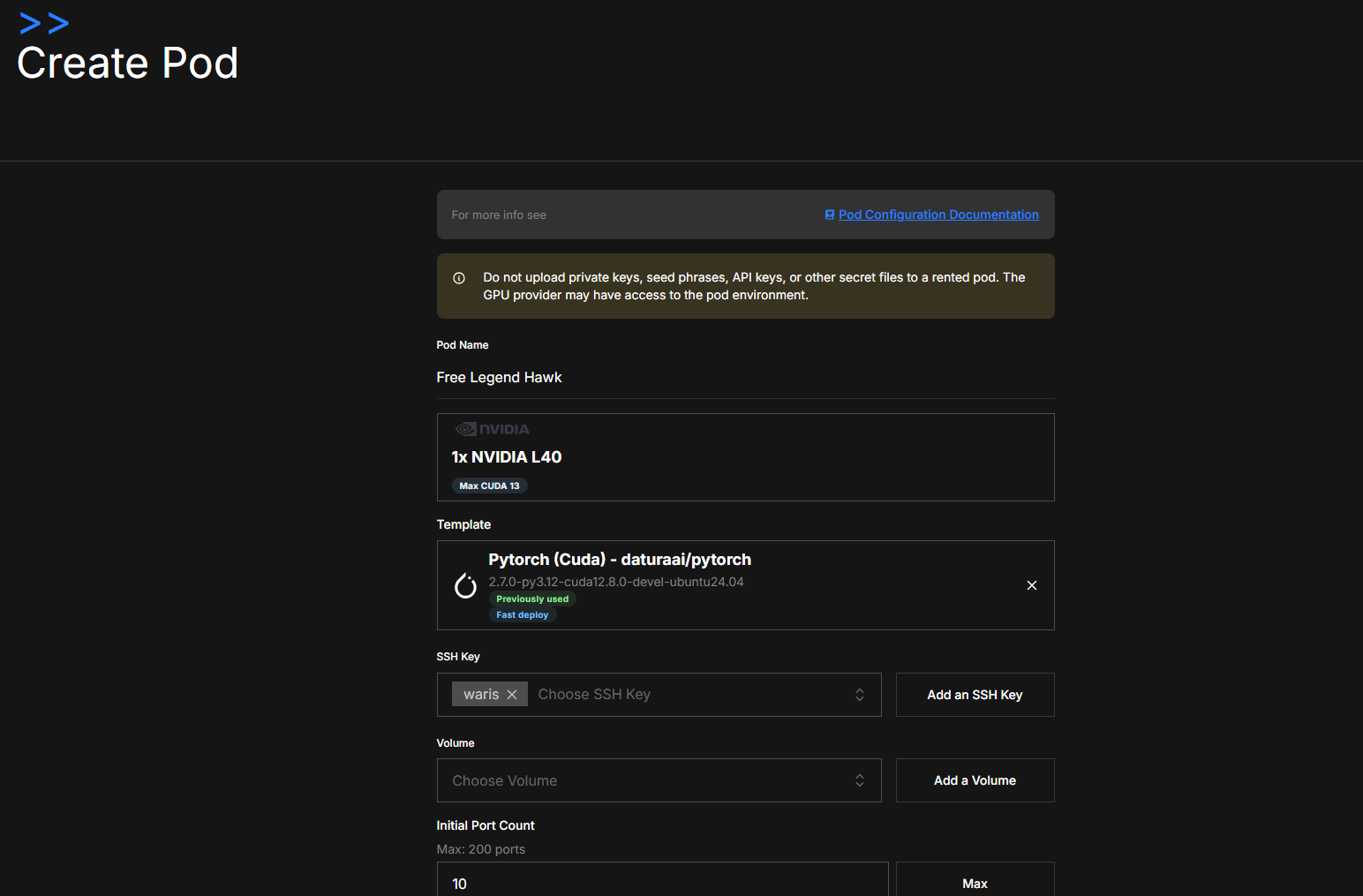
The page itself reminds you: "Do not upload private keys, seed phrases, API keys, or other secret files to a rented pod. The GPU provider may have access to the pod environment."
If you must run sensitive workloads, filter for Confidential Computing machines on Browse Pods. Full model: Pod security and CVM guide.
The fields, top to bottom
Pod Name
Auto-generated like Proud Machine Cloud. Click and rename to anything you'll recognize in the Your Pods list later.
Template
The Docker image your container is built from. The default is the most-used template for the chosen GPU (Pytorch (Cuda) - daturaai/pytorch for most NVIDIA cards), pre-cached on the host so deploys finish in ~1 minute.
- Click the × on the template card to swap. The picker drawer marks the host's canonical image with a blue Fast deploy badge and shows a green Previously used badge on templates you've deployed before.
- After picking, watch the right-hand summary's Est. Deploy Time row. A small cached badge there means the image is on this specific node right now (deploy in seconds); no badge means a pull is needed (1–10 min).
- Need something specific (vLLM, SD-WebUI, your own image)? See Templates for picking and creating one.
SSH Key
The chips show which keys will be installed in ~/.ssh/authorized_keys on the pod. The dropdown picks from existing keys; Add an SSH Key opens an inline form to paste a new public key — same as Access → SSH Keys.
You need at least one SSH key to reach the pod.
Volume
Optional. Mount an external Volume at /mnt so data survives pod termination. One volume per pod at a time.
When a pod is deleted, everything on it is gone, including /root. Only a Volume mounted at /mnt (or a Backup) survives the pod.
Encrypt local volume
This option appears for official templates that support it. Encryption is on by default and stores the pod's local volume (/root) as ciphertext on the provider's disk.
Turn it off for IO-bound workloads where disk throughput matters more than at-rest protection. Full details: Encrypted local volumes.
Initial Port Count
How many TCP ports to forward from the host. Each pod gets a port range; one is used for SSH, the rest are free for your services (Jupyter, vLLM, etc.). The right side shows the host's max — click Max to grab them all.
Auto-Termination (Optional)
Type a number of hours and the pod will be deleted automatically when it elapses. Cheap insurance against forgetting. You can also set this later — see Scheduled termination.
Install Jupyter
Tick the box and the pod's startup script installs JupyterLab and exposes it on a forwarded port. The pod detail page will show the URL.
Restore (optional)
Restore data from a completed backup while creating the pod.
- Select one of your completed backups or enter its ID directly.
- Choose a new or empty directory below the local volume mount, such as
/root/restored. The volume root itself is not a valid restore destination. - Deploy the pod. It becomes running and accessible before the restore finishes.
Follow progress on the new pod's Backups tab. Do not modify the restore directory until the operation completes. Full details and path rules: Restores.
# of GPUs (when GPU splitting is on)
If the host supports GPU splitting, a count selector appears. The provider sets a minimum (e.g. 2 of 8); you can pick any count between that minimum and the host's total.
CPU, memory, and storage are sliced proportionally to the GPU count you take:
cpu       = total_cpu      × rented_gpu_count / total_gpu_count
reserve   = max(4, total_mem_gb × 1%)
memory_gb = max(1, (total_mem_gb - reserve) × rented_gpu_count / total_gpu_count)
disk      = free_disk      × rented_gpu_count / total_gpu_count
volume_limit  = int(disk × 2 / 3)
storage_limit = int(disk × 1 / 3)
The host keeps reserve GiB of RAM for its own services, and a pod always gets at least 1 GiB. For example, a 16 GiB host keeps 4 GiB, and a 2 TiB host keeps about 20 GiB.
On a machine with the GPU Profiling badge the selector never appears: profiling machines are rented whole-host only, all GPUs included. See GPU profiling with ncu.
Advanced — Skip agent SSH key
The platform installs a small agent key alongside yours. It powers the web terminal and pod-health checks. Untick Skip agent SSH key to remove it — you'll lose the web terminal and we can't tell the GPU provider if SSH breaks. Default: leave it on.
Right-hand summary
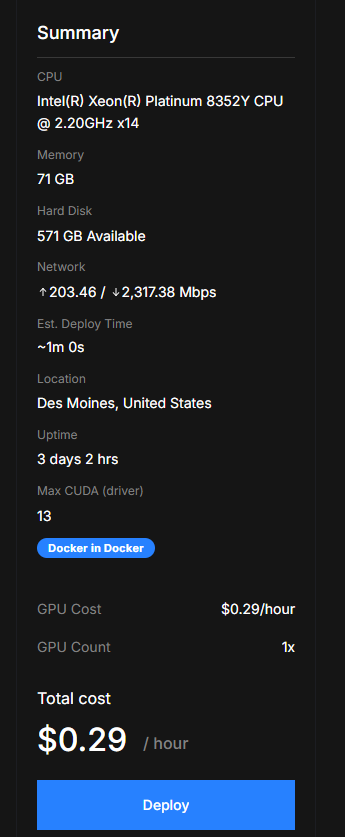
The summary panel mirrors your selections — CPU, memory, hard disk, network, estimated deploy time, location, max CUDA driver, GPU cost per hour, GPU count, Total cost / hour. On a split host, what each line describes:
| Line | Your pod's share, or the whole host? |
|---|---|
| CPU | Your share: the cores your GPU count gets (formula above). |
| Memory | Your share: the host's RAM less its reserve, times your GPU share (formula above). |
| Hard Disk | The whole host's free disk ("Available"), not your pod's. Your pod gets its GPU share of it (formula above). |
| GPU Count, Total cost | Yours: the GPUs you picked and their price. GPU Cost is the price of one GPU. |
Verify before you click Deploy.
After deploying
Click Deploy, and the pod appears in Your Pods with status PROVISIONING then RUNNING. From there:
- Copy the SSH command from the SSH CONNECTION strip on the pod detail page.
- On a multi-GPU pod, run
nvidia-smi topo -mbefore anything else and time a download — see Before you rent 8 GPUs. - Connect Discord and request a private provider support channel if you need help with the running pod — see Discord support.
- Set up automated Backups.
- Schedule termination if you forgot during creation.
If a pod ever shows a red BROKEN status, the provider force-closed it — you're credited and it can only be deleted. See Broken pods.