Default Jobs
Default Jobs are reusable fallback workload profiles for provider nodes. Assign a profile to a node, and Lium can run that workload while the node is idle and unrented.
Default Jobs are best-effort idle workloads. Customer rentals always have priority, and a running Default Job can be stopped when the node is needed for a rental or when the assignment is disabled, cleared, changed, or deleted.
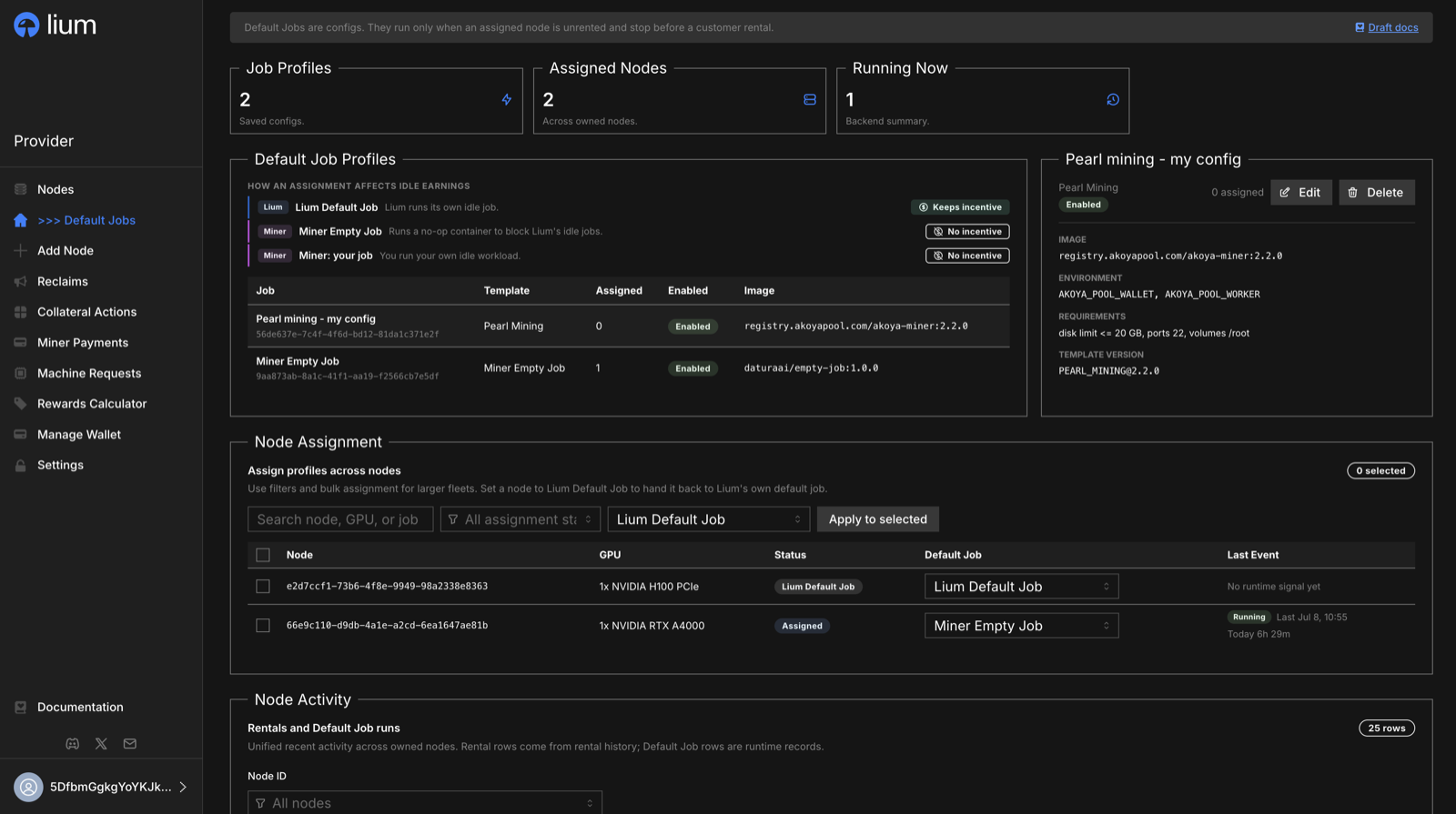
What Default Jobs are
Use Default Jobs to:
- Save a reusable workload profile in the Provider Portal.
- Assign that profile to one or more owned nodes.
- Bulk-assign a profile across a larger fleet.
- Leave a node in the Lium Default Job state to let Lium run its own idle workload there and keep the unrented incentive.
Default Jobs do not create customer rental records, billing records, or customer pods.
Default Jobs and the unrented incentive
On an idle node, running your own Default Job and earning the unrented incentive are mutually exclusive. Per node you choose one:
- Lium Default Job — Lium runs its own Default Job on the idle node; the node keeps the unrented incentive. See Lium Default Jobs on idle nodes.
- Miner: your job — you assign your own Custom Docker Default Job; it earns for you, but the node forfeits the unrented incentive while it's assigned.
- Miner Empty Job — a tiny no-op container holds the node so Lium's idle jobs can't start; the node earns no unrented incentive but stays fully rentable. See Create a Miner Empty Job.
This trade-off applies only while the node is idle. When a customer rents the node, it earns rental income and the rented-pool share exactly as before, regardless of any Default Job assignment.
Lium Default Jobs on idle nodes
When a node is idle and has no Default Job of your own assigned, Lium automatically runs its own Default Job on it. This turns unused capacity into revenue that backs the unrented incentive, while the node keeps earning that incentive as usual.
How Lium Default Jobs behave:
- Automatic. Nothing to configure on your side; the rollout is gradual across the fleet.
- Customer rentals always win. When a customer rents the node, the Lium Default Job stops within seconds and the rental starts as usual. Rentability and rental earnings are not affected. When the rental ends and the node is idle again, a Lium Default Job can start again automatically.
- Your own Default Job takes priority. If you assign your own Default Job to the node, the Lium Default Job yields and your job runs instead — with the unrented-incentive trade-off described above.
- Visible in Node Activity. Every Lium Default Job start and stop appears in Node Activity in the Provider Portal, alongside your rentals and your own Default Job runs.
Which Lium Default Job runs on your node
The Lium Default Job is one of two workloads, chosen automatically per node:
- Dolphin — a paid AI inference worker for the dphn.ai network, run on capable idle nodes. It is a light workload and runs at full GPU power.
- Pearl — the fallback Lium runs on nodes that are not eligible for Dolphin. It holds the GPU at sustained full load, so while it runs Lium automatically lowers the GPU power limit to protect the card; the limit is restored as soon as the job stops, and a rented node runs at the limit set on the host (full power unless you set one, see GPU power cap). On a card whose driver does not accept a lower limit, Pearl runs at the lowest limit the driver allows, as long as that minimum sits under the card's default. See GPU power cap → The lowest limit the driver accepts.
Either way, Lium earns from the workload; your node keeps its unrented incentive and stays fully rentable, exactly as described above. There is nothing to enable — eligible nodes are picked up automatically.
A node is eligible for Dolphin when it has:
- An Ada-generation or newer GPU (RTX 40-series/Ada, Hopper, Blackwell — RTX PRO 6000 included). Ampere and older (A100, RTX 30-series, V100, T4) are not eligible.
- 70 GB or more of GPU memory in total across the node's GPUs (a single smaller card does not qualify; several cards can add up).
- NVIDIA driver 580 or newer (CUDA 13). Older drivers are skipped.
- At least ~130 GB of free disk and an x86 (amd64) CPU.
Nodes that do not meet these requirements run the Pearl fallback while idle and still keep the unrented incentive — Dolphin simply does not run on them. To make an eligible card qualify for Dolphin, keep its NVIDIA driver on 580 or newer.
Short measurement runs. To learn what a workload earns on a GPU model it has not run on recently, Lium sometimes runs that workload on one idle node of the model for 30 to 60 minutes. For example, Pearl can run on a Dolphin-eligible node, at the lowered power limit Pearl always uses. Lium runs this on one node per workload and GPU model at a time, and never on a node with a customer rental. A customer rental still stops the run at once, and the node keeps its unrented incentive. After the run, the node goes back to its usual workload.
When a node is eligible for more than one workload, Lium picks the one that earns the most per GPU-hour on that node (not released yet). Earnings are measured per GPU model over the last 72 hours. A workload already running on a node keeps it until another one earns clearly more there, so a node does not flip between jobs on a noisy hour. A switch shows up in Node Activity as one job stopping and the other starting a few minutes later; nothing changes on your side. The pool for Dolphin and the pool for Pearl are both Lium's; your node keeps its unrented incentive whichever one runs.
Before you start
Before creating a Default Job, make sure:
- You are signed in to the Provider Portal with your provider hotkey.
- Your provider is connected, either self-hosted or through the Lium.io Central Provider Server.
- You have at least one registered node. See Managing Nodes.
- For Custom Docker, you have a public image and a command that keeps the container running.
Create a Custom Docker profile
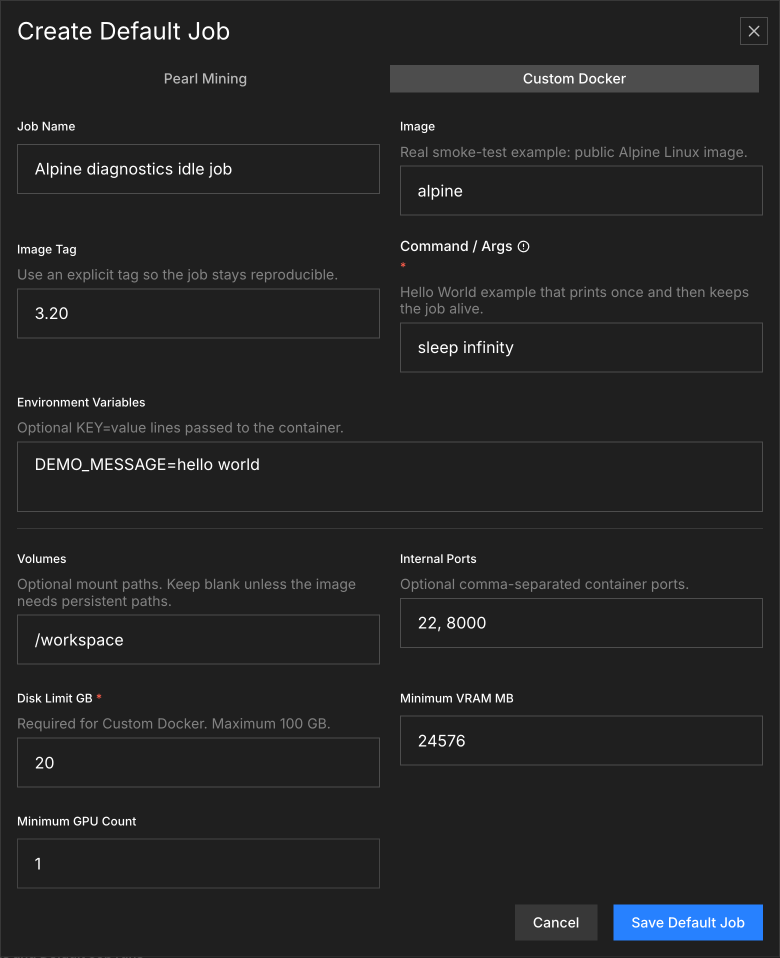
Use Custom Docker when you want to run your own long-running container on idle nodes.
- Open Default Jobs in the Provider Portal.
- Click Create Job.
- Select Custom Docker.
- Fill the required fields:
- Job Name: a readable name for the profile.
- Image and Image Tag: for example,
alpineand3.20. - Command / Args: a command that keeps the container alive, such as
sleep infinity. - Disk Limit GB: required, a whole number of GB, at least 1. There is no fixed maximum. The job starts only on a node whose free disk covers the limit plus the reserve every node keeps (50 GB on lium.io). A limit that, with the reserve, is more than the node's total disk is refused when you assign the job to that node, or when you raise the limit of a job that is already assigned; for that check the reserve is a tenth of the node's disk when that is more than 50 GB. The job alone never takes more than 90 % of the disk.
- Add optional fields if your image needs them:
- Environment Variables as
KEY=valuelines. - Volumes as comma-separated mount paths.
- Internal Ports as comma-separated container ports.
- Minimum VRAM MB and Minimum GPU Count for node-fit requirements.
- Environment Variables as
- Click Save Default Job.
If the Custom Docker command exits, the Default Job run ends. Use a long-running worker process, service command, or an explicit command such as sleep infinity for smoke testing.
Create a Miner Empty Job
Use Miner Empty Job to keep both your own and Lium's default jobs off a node while it is idle — it runs a tiny no-op container that holds the node without doing any work, uses no GPU, and has no fields to configure.
The simplest way is to assign it straight from the node's dropdown; the portal creates the preset for you:
- Open Default Jobs in the Provider Portal.
- In the Node Assignment table, open the node's Default Job dropdown (or tick several nodes to use the bulk dropdown).
- Select Miner Empty Job. For a bulk assignment, then click Apply to selected.
You can also create it as a saved profile from Create Job — it appears alongside Custom Docker — but that is optional, since selecting it in the dropdown creates and assigns it in one step.
While a node is assigned Miner Empty Job:
- Lium does not run its own Default Job on that node.
- The node earns no unrented incentive while it sits idle — the same trade-off as running your own Default Job, because Miner Empty Job is your own job.
- The node stays fully rentable. Customer rentals and rental earnings are unaffected.
To let Lium's Default Jobs and the unrented incentive resume, set the node back to Lium Default Job.
Assign profiles to nodes
After saving a profile, assign it in the Node Assignment table.
Assign one node
- Find the node row.
- Open the Default Job dropdown.
- Select the profile.
Assign multiple nodes
- Select the checkboxes for the target nodes.
- Choose a profile from the bulk assignment dropdown.
- Click Apply to selected.
To remove an assignment, choose Lium Default Job. Each node can have only one active Default Job assignment.
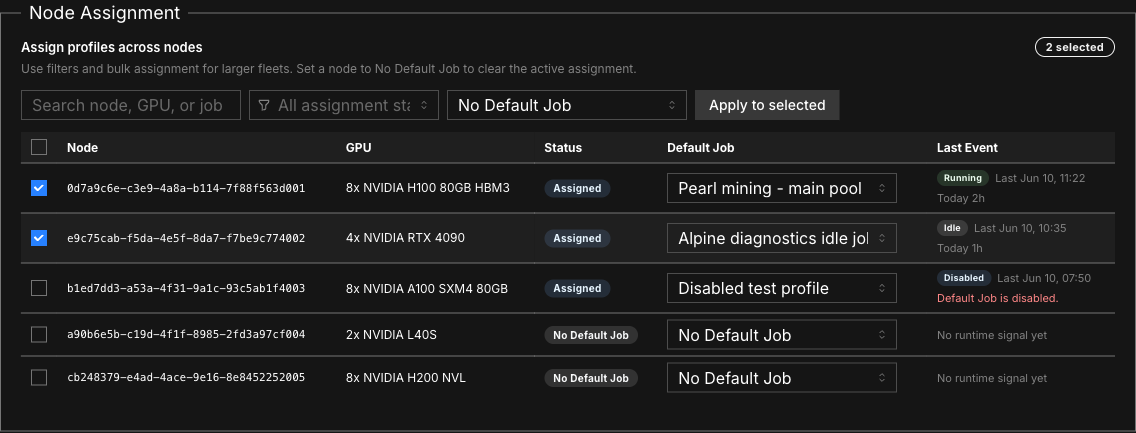
Monitor runs and activity
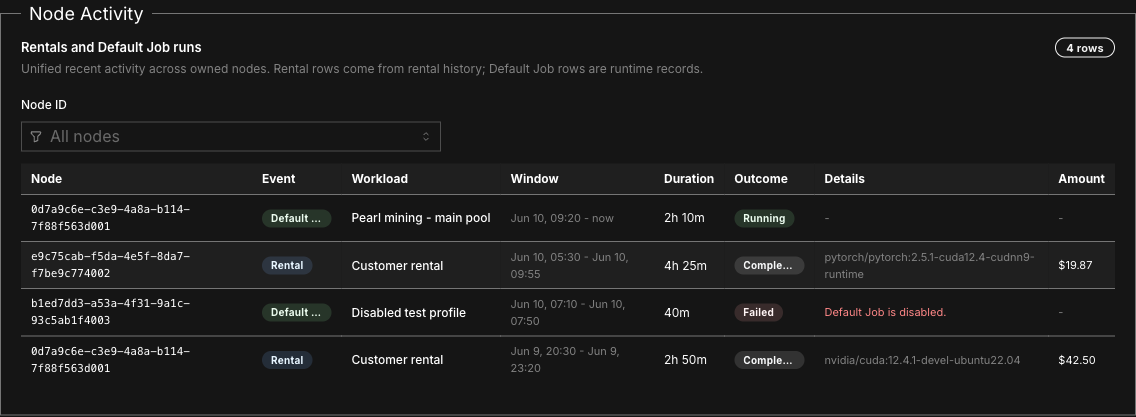
The Default Jobs page shows runtime signals in two places:
- Node Assignment: current assignment state, runtime status, last event time, runtime today, and failure reason when available.
- Node Activity: recent customer rentals and Default Job runs across your owned nodes, including Lium Default Job runs started automatically on your idle nodes.
Assignment statuses include Lium Default Job, Assigned, and Disabled. Runtime statuses can include Idle, Starting, Running, Stopping, Failed, or Blocked.
Disable, clear, or delete
Use the smallest action that matches what you want:
| Action | Where | Result |
|---|---|---|
| Disable a profile | Edit the Default Job and turn the Enabled switch off | The profile is kept, but the runtime will not start it. Existing assignments remain visible. |
| Clear an assignment | Set a node to Lium Default Job | The node no longer has an active fallback workload assignment. |
| Delete a profile | Open the profile details and click Delete | The profile is removed and its active assignments are cleared. |
When a running Default Job becomes inactive because the profile or assignment changed, the runtime stops it on a later runner cycle.
Limits and behavior
- Default Jobs run only on active, idle nodes with an enabled profile assignment.
- Running your own Default Job forfeits the node's unrented incentive while it is assigned; leaving a node in Lium Default Job keeps the incentive. See Default Jobs and the unrented incentive.
- Customer rentals have priority over Default Jobs.
- Heavy Default Jobs that hold the GPU at full load, such as the Lium default Pearl job, run with a reduced GPU power limit to protect the hardware; the limit is restored when the job stops. Lighter workloads such as Dolphin are not power-limited. A card whose driver refuses a lower limit runs Pearl at the lowest limit it accepts, as long as that minimum sits under the card's default; see GPU power cap.
- A node can have only one active Default Job assignment.
- Custom Docker disk limits have no fixed maximum. The node decides: the runtime checks
disk limit + 50 GBagainst the node's free disk before every launch, and the portal refuses an assignment, or a raised limit on an assigned job, whendisk limit + max(50 GB, a tenth of the disk)is more than the node's total disk. - The runtime checks node fit before launch, including free GPUs, optional minimum GPU count, optional minimum VRAM, disk space, and required internal ports.
- Runs are best-effort and can be skipped or stopped by runtime conditions.